

How to take a scrolling screenshot on Windows
Also available in:简体中文
Some things do not fit on one screen: a long web page, a long document, a whole chat history. Sending them means taking several screenshots and stitching them together yourself. Scrolling capture joins them into one tall image for you. Here is how to do it on Windows.
Why a normal screenshot is not enough
System shortcuts such as Win+Shift+S capture only what is visible on the screen right now. Anything beyond that needs several captures and a separate tool to join them, which is slow and easy to misalign.
Take a long screenshot with SnapDuck
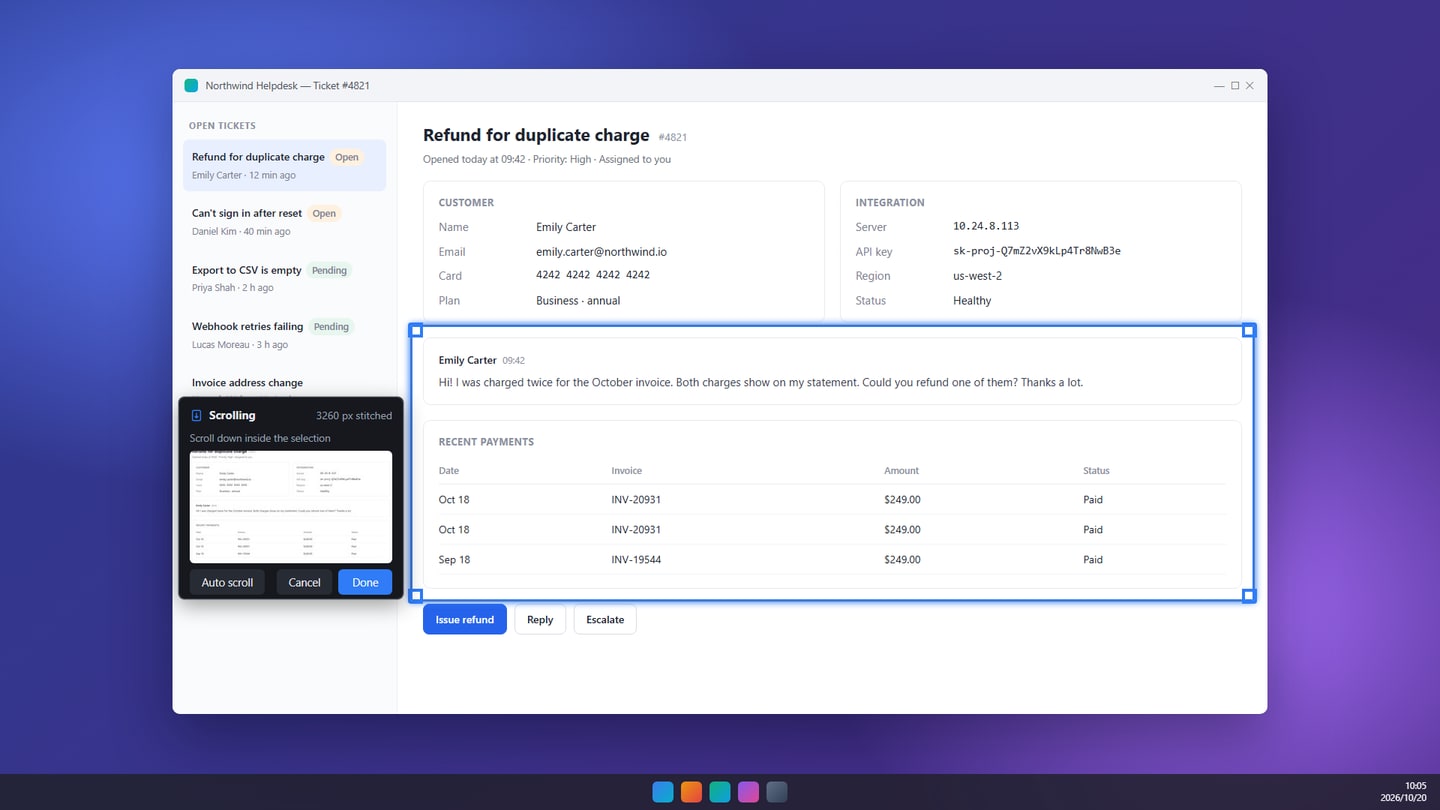
- Press Ctrl+Shift+A and choose Scrolling capture in the mode bar at the top.
- Drag to select the area to stitch, for example the body of a web page or the message area of a chat window.
- Scroll down with the mouse wheel inside the selection. SnapDuck stitches as you go and shows how many pixels it has joined so far.
- If you would rather not scroll yourself, click Auto scroll. The page scrolls on its own and finishes by itself at the bottom.
- Click Finish to create the image, or Cancel to discard it.
Scrolling capture is fully available in the free edition.
What if it fails to stitch?
If you see a message that the capture could not be joined, it is usually one of these:
- Scrolling too fast: scroll back a little and go slowly, or use auto scroll.
- Fixed elements inside the selection: a sticky header or a floating button can confuse the stitching. Select only the part that actually scrolls.
- Content still loading while you scroll: let the page finish loading first.
There is a maximum height. When you reach it, SnapDuck finishes automatically and tells you, and you can capture the rest as a second image.
More tips
- Before you share a chat history, think about whether it shows emails or keys. See how to blur sensitive details in a Windows screenshot.
- To show a whole process instead, see how to record your screen as a GIF or MP4.
- More about the app on the SnapDuck home page.
SnapDuck is available from the Microsoft Store.